
Dataverse holds mission-critical business information, and keeping it safe should be a top priority. Whether you’re getting ready for a significant upgrade, bringing in new data, or preventing losses from unexpected mistakes or deletions, reliable backups are essential. Thankfully, Microsoft has made the process much easier for us, and understanding how to create and restore them is key to maintaining a secure and resilient environment.
Understanding Dataverse Backups
There are two main types of backups in Dataverse:
System Backups (Automated)
Microsoft automatically takes these backups for environments with a Dataverse database every 30 minutes.
The default retention period for these backups is 28 days for Production environments with Dynamics 365 apps and 7 days for Production environments without Dynamics 365 apps, Sandbox, and Developer environments.
Manual Backups (On-demand)
These are backups you trigger yourself whenever needed. They can be created at any moment, and while they’re kept for 7 days by default, the retention period can be adjusted. Check the documentation for the process of changing the retention period.
These backups don’t count towards your storage capacity. However, you will need at least 1 GB of free space for restoring an environment.
How to Create a Manual Dataverse Backup
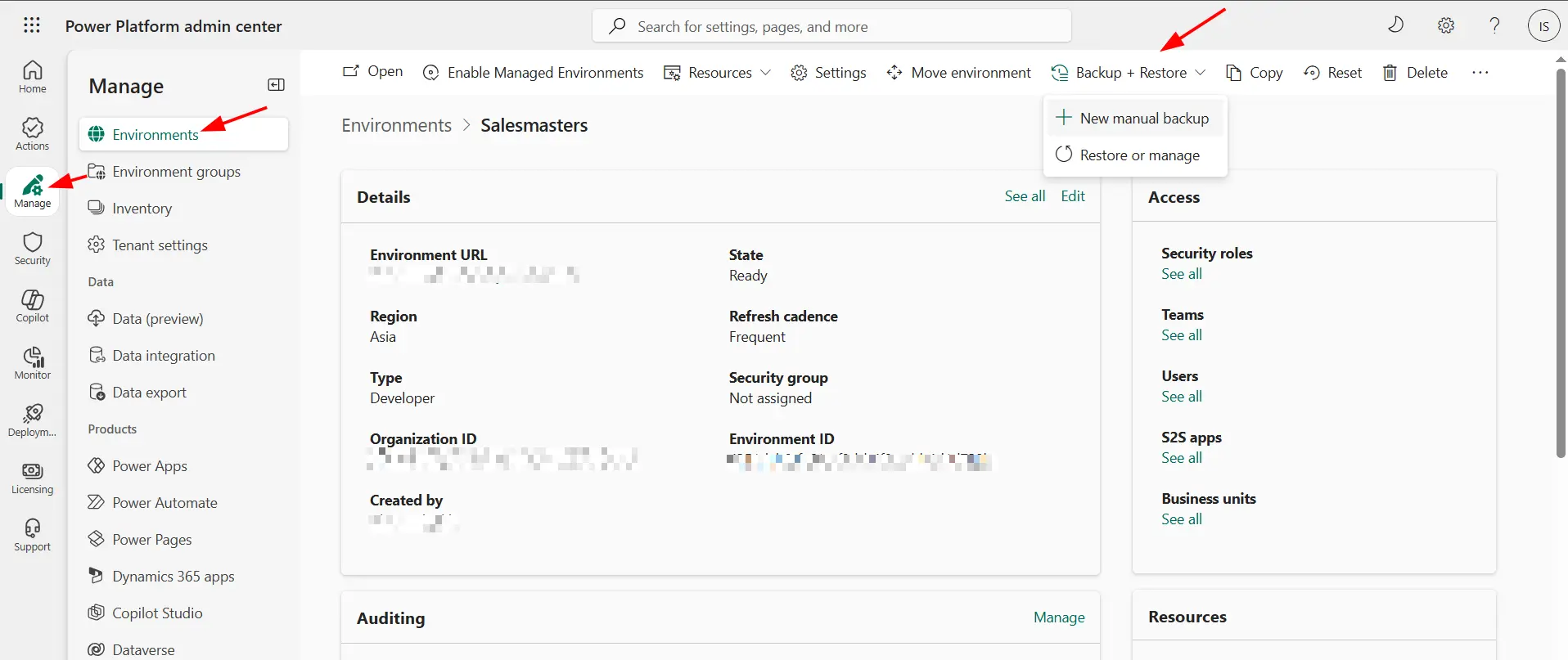
First, navigate to the Power Platform Admin center.
Select your environment and click on New manual backup.
Provide a descriptive label (eg, Pre-Prod 06-12-2025) and click Save.
Your manual backup will be created. You can see the list of all your manual backups under Restore or Manage.

How to Restore a Dataverse Backup
Restoring an environment allows you to revert your environment’s data and customizations to a previous state captured by a system or manual backup.
System backup
Navigate to Admin center > Environments > Your environment.
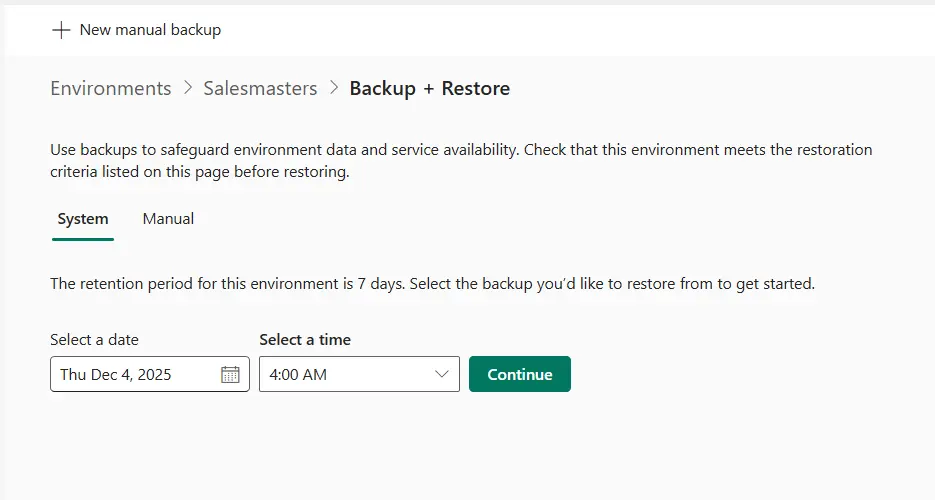
Select the Backup + Restore from the top, and choose the desired backup by Date & time. The date and time displayed reflect your local time zone.
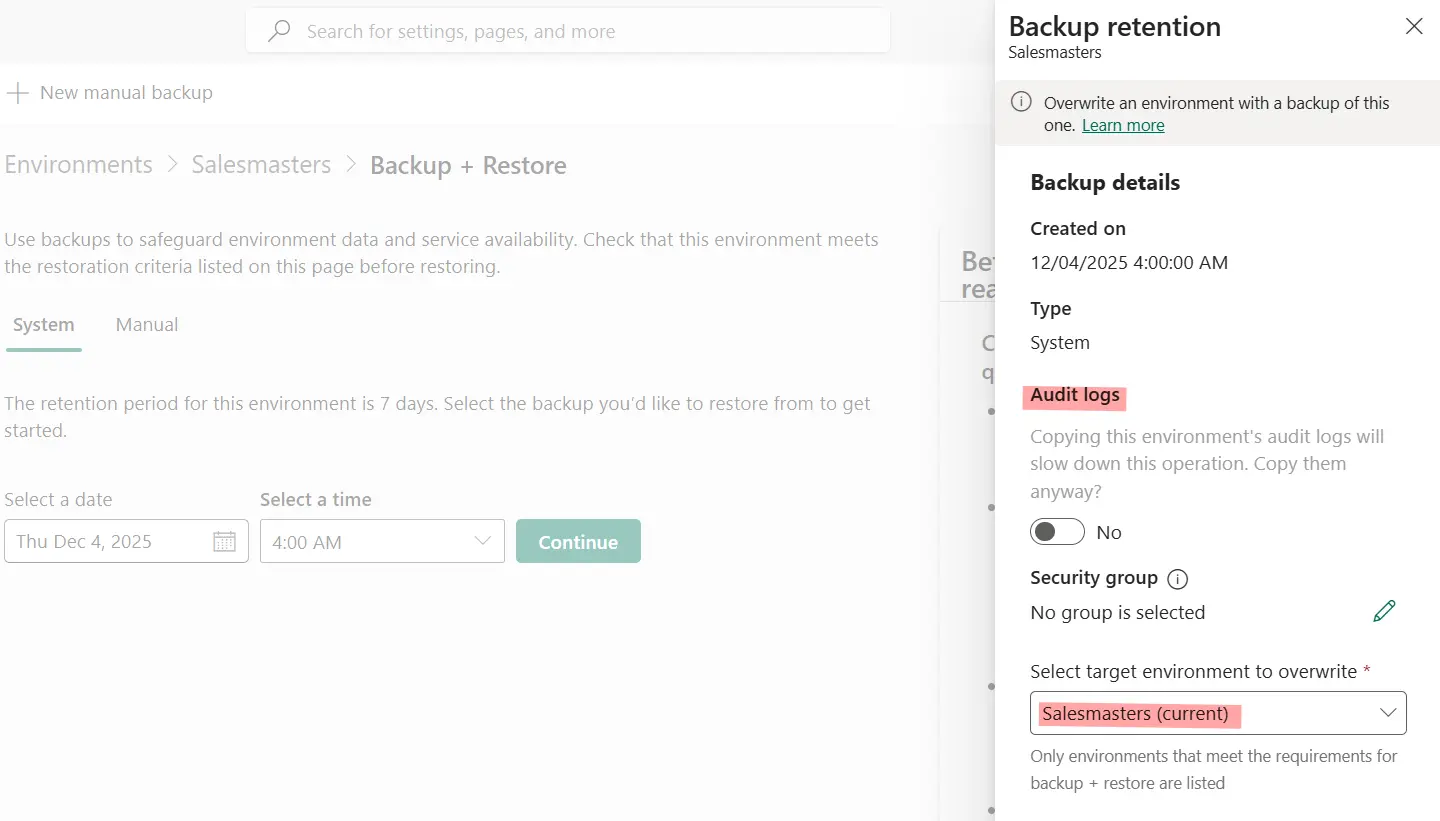
In the side panel, choose the target environment you want to overwrite. You can also opt to restore Audit logs, but enabling this will slow down the overall restoration process.
Select Restore, and then select Confirm to proceed with overwriting the target environment.
Manual backup
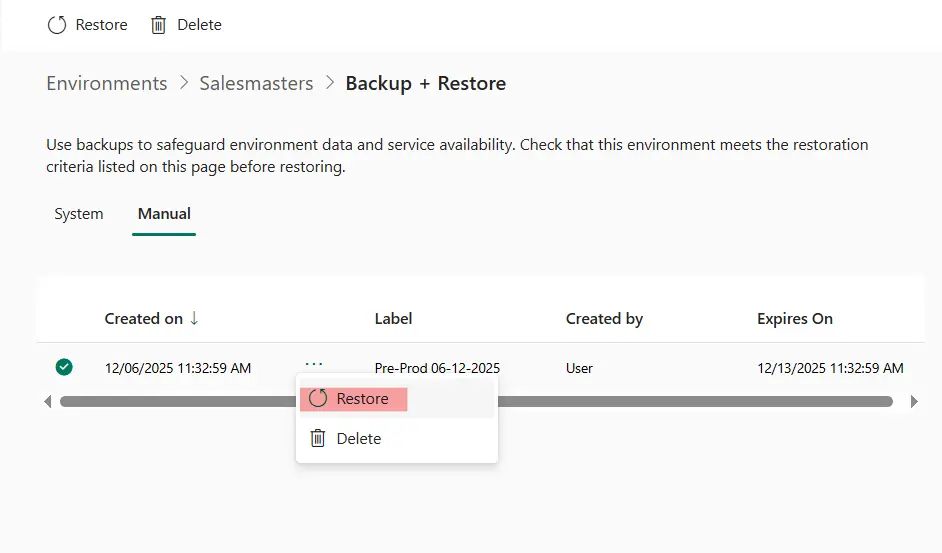
To restore the manual backup, navigate to the manual backup you created and click Restore under the menu.
Post-Restoration Checklist
After a successful restore, it’s vital to perform a few cleanup tasks, as the environment’s state is reverted:
- During restoration, the environment will be moved to Administration mode and will not be accessible to the other users. Make sure to change it back after restoration is complete.
- Power Automate flows may be disabled after a restore. Manually review and re-enable any necessary cloud flows.
- If the restored environment includes a Power Pages site, restart it once after the restoration to ensure the cache is cleared.