
Adding a Content Security Policy (CSP) header is a recommended security practice that helps control which resources your site is allowed to load. Power Pages supports configuring CSP headers through site settings.
While setting up a CSP policy, it is a good idea to test it first before enforcing it. You can do this by creating a site setting named HTTP/Content-Security-Policy-Report-Only.
This allows you to validate the policy without blocking any resources.
Use the following CSP header value as a starting point. You can incrementally add or adjust directives as needed.
default-src 'self';
form-action 'self';
frame-ancestors 'self';
object-src 'none';
base-uri 'self';
font-src 'self' https://content.powerapps.com https://*.cdn.office.net;
script-src 'self' 'unsafe-eval' 'unsafe-inline' https://content.powerapps.com;
style-src 'self' 'unsafe-inline' https://content.powerapps.com;
img-src 'self' https://content.powerapps.com;
connect-src 'self' https://content.powerapps.com;
frame-src 'self';
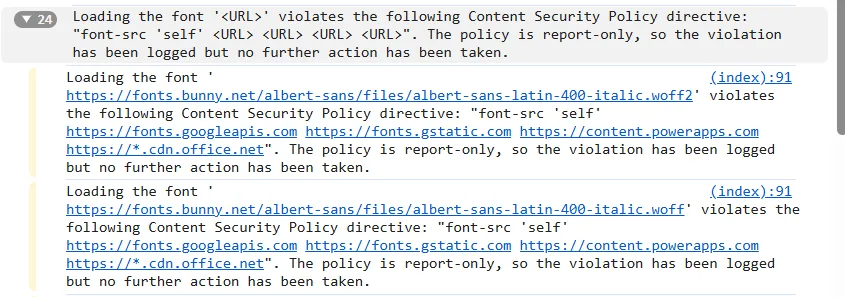
upgrade-insecure-requests;Once this setting is configured, Power Pages will start reporting CSP violations in the browser console. Review these messages and update the policy step by step until all required resources are covered.
For example, if your portal uses Google Analytics, you should include domains such as https://www.googletagmanager.com and https://www.google-analytics.com in the script-src directive to ensure the tracking scripts load correctly.
After validating the policy, you can enforce it by creating another site setting HTTP/Content-Security-Policy.
This will return the CSP header from your Power Pages site and apply the defined restrictions.
Note
unsafe-inline and unsafe-eval reduce CSP’s effectiveness against XSS attacks and should be avoided where possible. They may be required for some Power Pages functionality, so validate your portal before removing them.
You can learn more about managing CSP headers in Power Pages from Microsoft’s official documentation.