

The Rich Text Editor in Dynamics 365 and Power Apps provides users with a familiar WYSIWYG editing experience for formatting text. By default, however, the editor displays a full set of formatting tools, which may be unnecessary for many business scenarios.
For example, if users only need basic text formatting such as Bold, Italic, and Underline, you can simplify the editor by displaying only those options. This will provide a cleaner interface and also reduce the chances of inconsistent formatting.
Create a Custom Rich Text Editor Configuration
The following screenshot shows the Rich Text Editor with its default toolbar configuration.
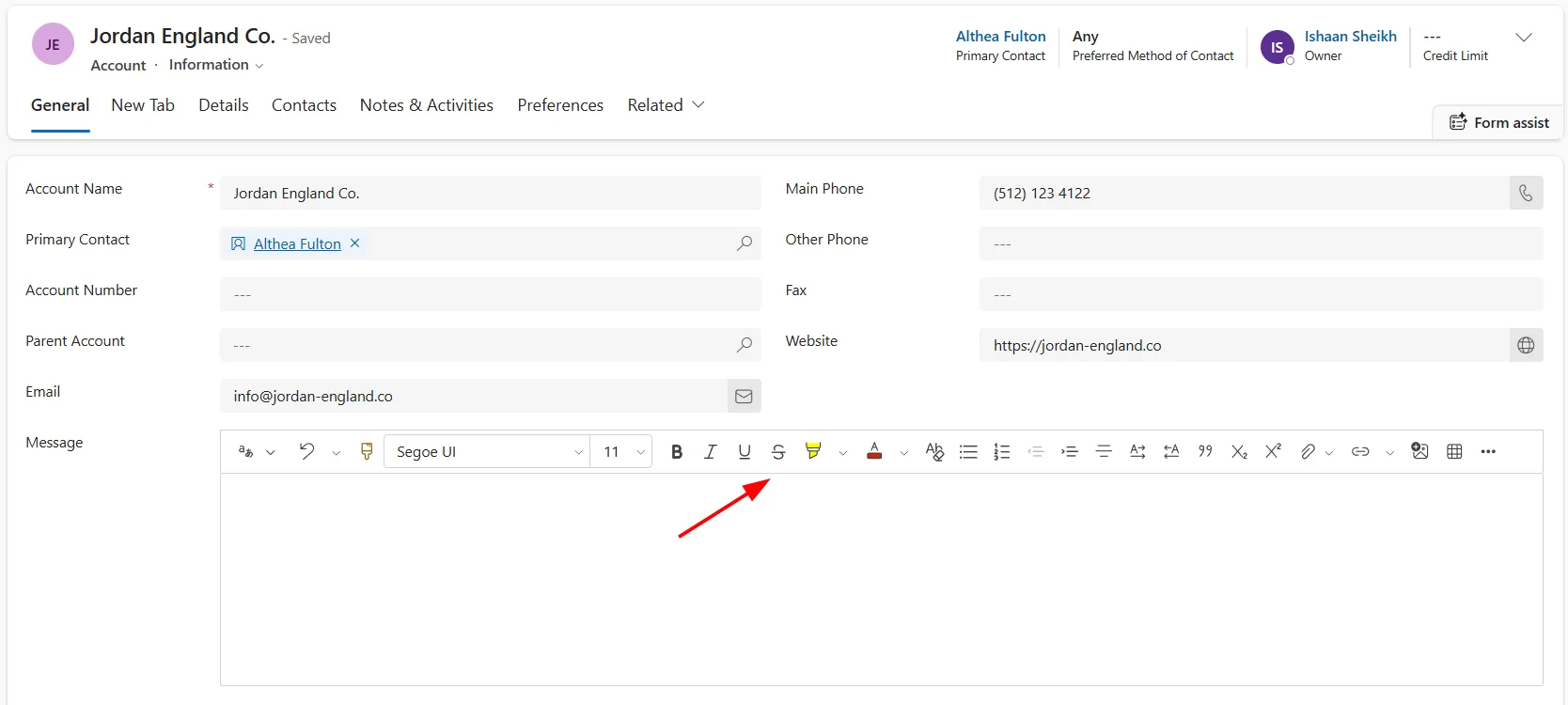
To customize the toolbar, create a new JavaScript Web Resource that contains the editor configuration in JSON format.
The following example limits the toolbar to only Bold, Italic, and Underline:
{
  "defaultSupportedProps": {
    "toolbarLocation": "top",
    "toolbar": [
      { "items": [ "Bold", "Italic", "Underline" ] }
    ]
  }
}Add the Rich Text Editor Control
Once the web resource is created, open the form in the Power Apps form designer.
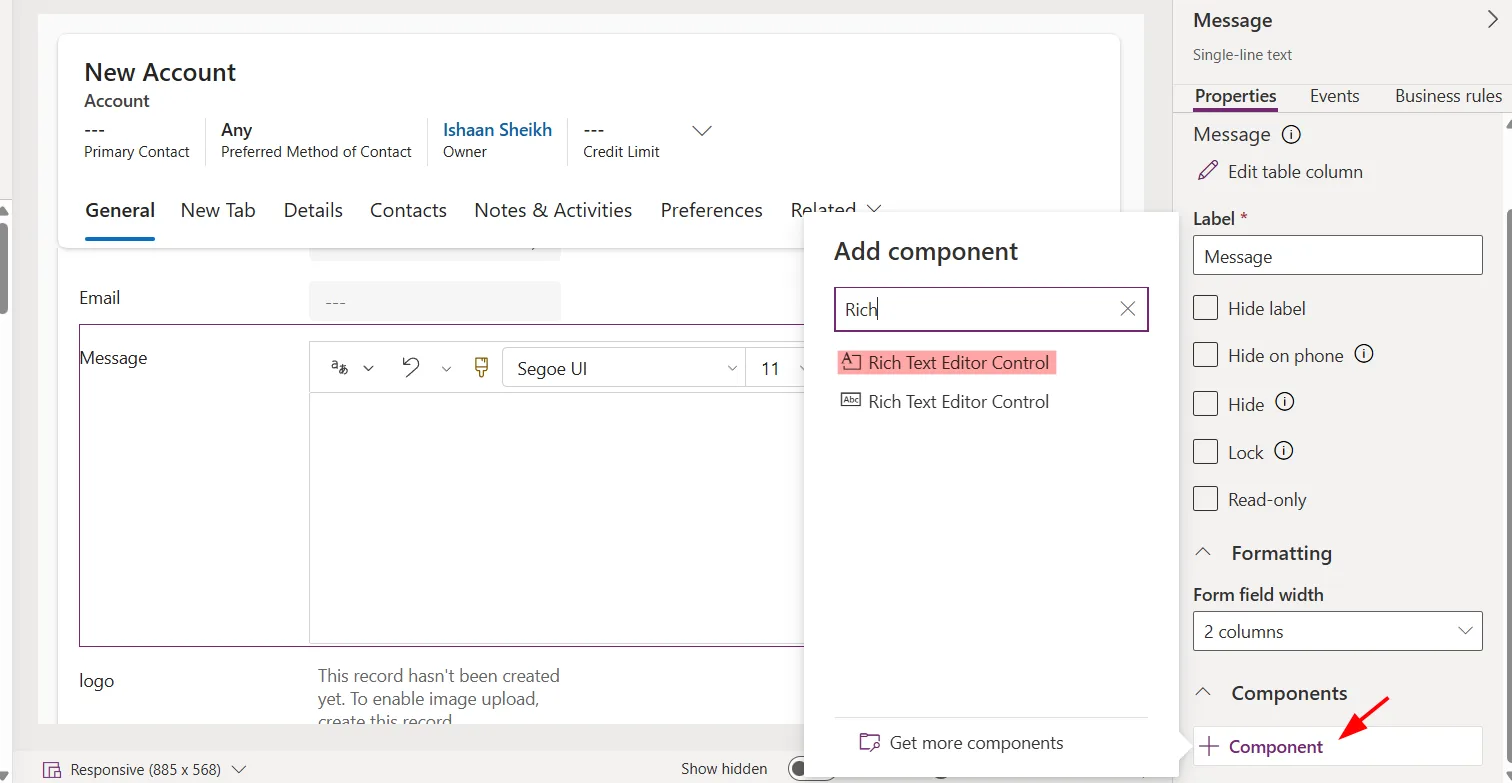
Select the rich text field that you want to configure, and under Components, click + Component.
Search for the control named Rich text editor control.
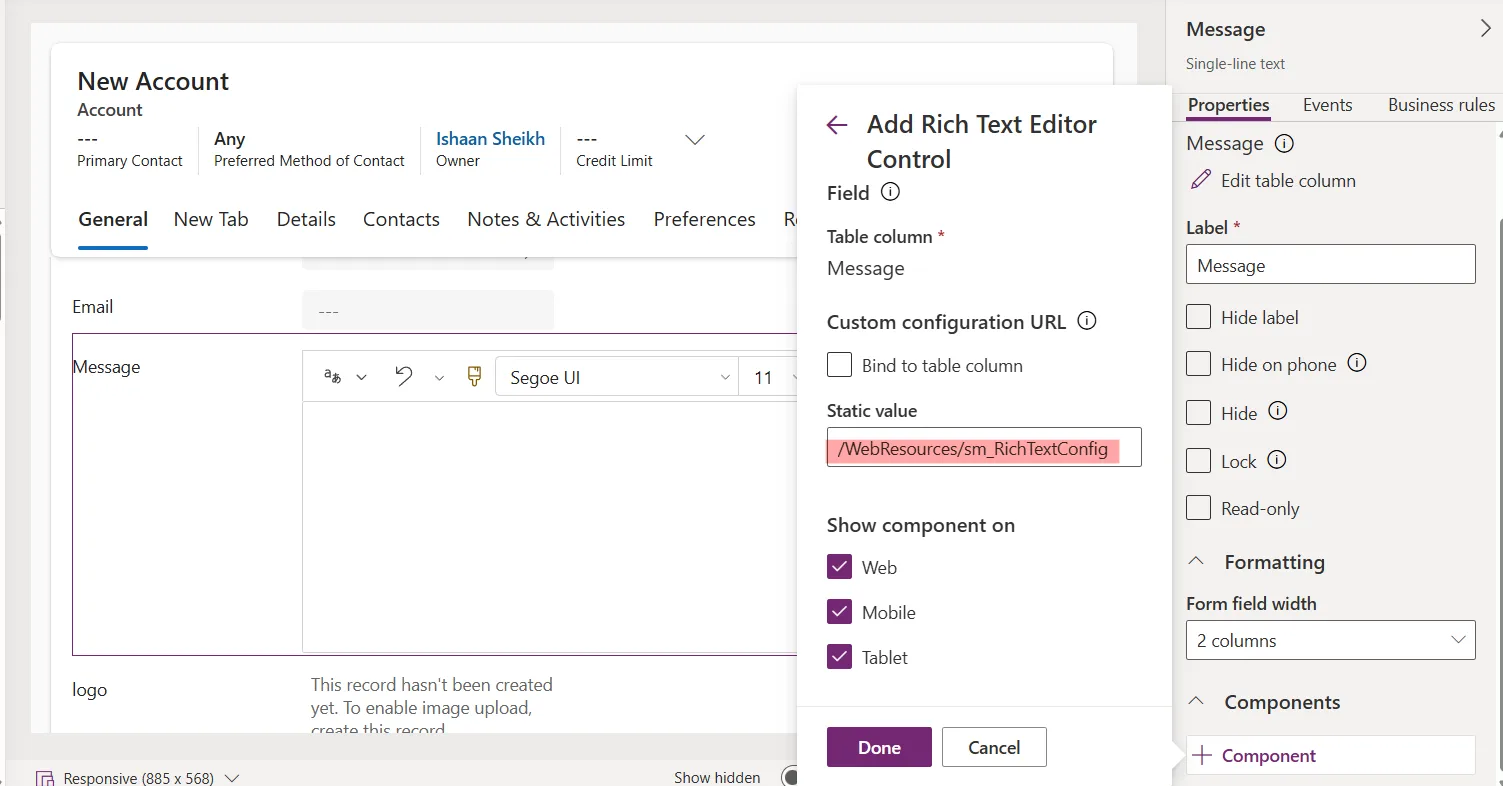
In the Static value field, provide the relative path of the JavaScript web resource containing your configuration for example, /WebResources/new_RichTextConfig.
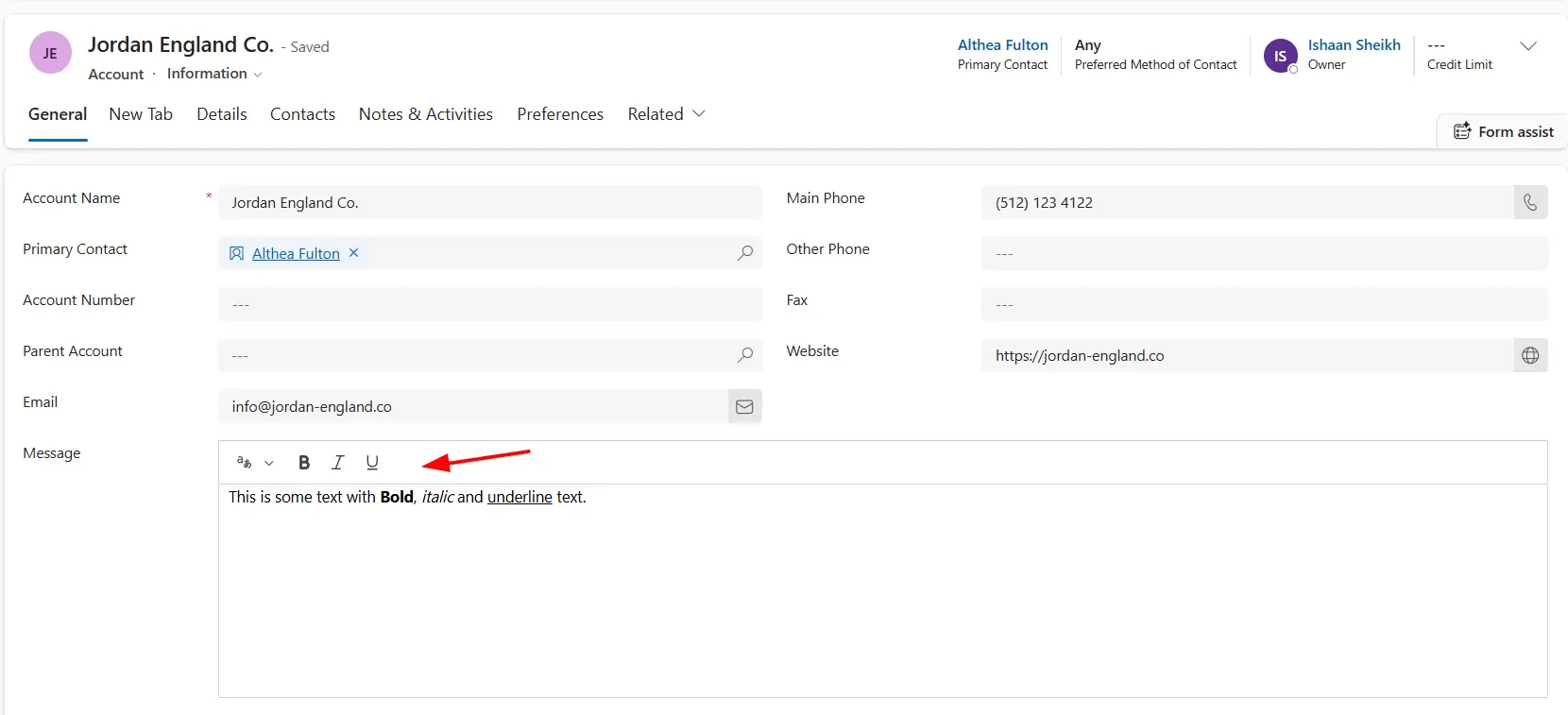
Now the Rich Text Editor will display only the formatting options defined in your configuration.
For a complete list of supported properties and configuration examples, refer to Microsoft’s official documentation.